

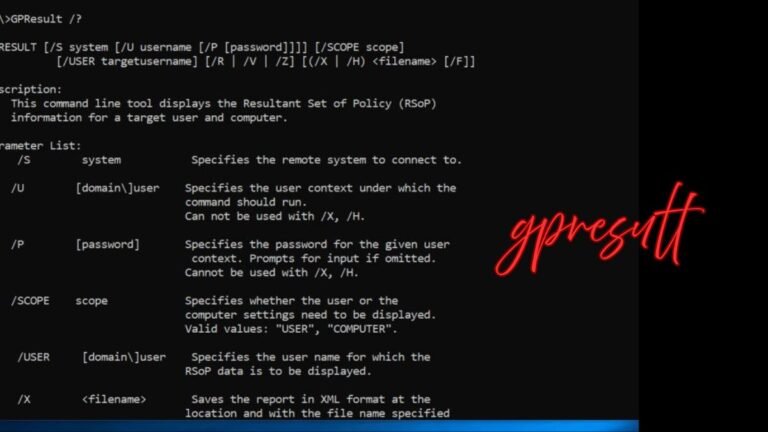
When Windows systems behave differently than expected, the reason often lies hidden in Group Policy settings. Administrators may apply dozens of policies across domains, users, and computers, and over time it becomes difficult to understand which rule is doing what. This is where gpresult becomes a powerful ally. It is a built-in Windows command-line tool that reveals exactly which Group Policy Objects are applied, why they apply, and where conflicts occur. Instead of guessing or manually checking policies, this tool gives you clarity, saves time, and helps maintain a healthy Windows environment. In this guide, we will explore how it works, why it matters, and how professionals use it in real-world scenarios.
What gpresult Is and Why It Matters
Group Policy is one of the most important management systems in Windows environments, especially in business networks. It controls security settings, login scripts, software deployment, and user restrictions. The challenge is that policies can stack, override, or fail silently. This is where gpresult proves its value by generating a Resultant Set of Policy report that shows the final, effective policies applied to a system or user.
Unlike graphical tools that require navigation through many windows, this command provides a clear snapshot in seconds. It helps administrators confirm whether a policy is applied correctly or blocked due to inheritance, filtering, or permissions. Even for smaller setups, understanding effective policy behavior prevents misconfigurations that can cause performance or security issues.
How gpresult Works Behind the Scenes
At its core, gpresult queries the local system and domain controllers to collect policy data. It analyzes user context, computer context, security group membership, and policy precedence. The output reflects what Windows actually enforces, not what administrators assume should apply.
The command can be run locally or remotely, depending on permissions. When executed, it evaluates policy processing order, including local policies, site-level policies, domain-level policies, and organizational units. This layered analysis is what makes the tool reliable. It does not simply list policies; it shows the final outcome after all conflicts and priorities are resolved.
Common Scenarios Where gpresult Saves Time
In real IT environments, policy issues often appear as vague complaints. A user cannot access a feature, a setting keeps reverting, or a security rule behaves inconsistently. Instead of manually checking Active Directory settings, administrators use gpresult to confirm what policies are actually in effect.
It is especially useful when troubleshooting login delays, restricted applications, or missing drive mappings. By checking both user and computer scopes, professionals can quickly isolate whether the issue is policy-related or caused by something else like permissions or software conflicts. This clarity makes problem resolution faster and more accurate.
Reading and Understanding gpresult Output
The output of gpresult can be displayed directly in the command prompt or exported as a detailed HTML report. The report includes applied Group Policy Objects, filtered policies, and reasons why certain policies did not apply. Understanding this output is key to effective troubleshooting.
You will see sections for computer configuration and user configuration, each listing policy names and sources. Security filtering, WMI filtering, and inheritance blocking details are also visible. Once you understand how to read these sections, you can quickly pinpoint misconfigurations and correct them with confidence.
Don’t stop here—take a look at what else we’ve got for you!
Best Practices for Using gpresult Effectively
While the tool itself is simple, using it effectively requires good habits. Always run it with appropriate permissions to ensure accurate results. When troubleshooting user issues, test with the affected account rather than an administrator account, as group memberships can differ.
Saving reports as HTML files allows easy sharing with team members or for documentation. This is especially helpful during audits or when working with external consultants. Regularly using gpresult during policy changes helps catch issues early, before they impact many users.
Security and Administrative Considerations
Because gpresult can reveal sensitive configuration details, it should be used responsibly. Access should be limited to trusted administrators, and reports should be stored securely. In large organizations, policy data can expose security settings that should not be widely shared.
From a compliance perspective, the tool is also helpful. It provides proof of applied security policies during audits. Administrators can demonstrate that password rules, firewall settings, and access restrictions are enforced as intended, strengthening overall security posture.
Conclusion
Understanding how policies actually apply in Windows environments is critical for stability, performance, and security. gpresult offers a clear window into this complex system, turning confusion into actionable insight. By using it regularly, administrators can troubleshoot faster, document configurations accurately, and maintain confidence in their Group Policy design. Whether you manage a small office network or a large enterprise domain, mastering this tool will make your administrative work more precise and far less stressful.
Expand your knowledge and check out more posts on our blog!
FAQs
What is gpresult used for?
It is used to display the effective Group Policy settings applied to a user or computer in Windows.
Can gpresult be used on non-domain computers?
Yes, it can show local policy results even on standalone systems.
Does gpresult change any system settings?
No, it only reads and reports policy information without making changes.
Is gpresult available on all Windows versions?
It is included in most professional and enterprise editions of Windows.
Can gpresult help with login issues?
Yes, it often reveals policy conflicts or delays that affect user logins.
